
📱Tech Tip: Make a Photo Video in iMovie on a Mac (start to finish) 🎬
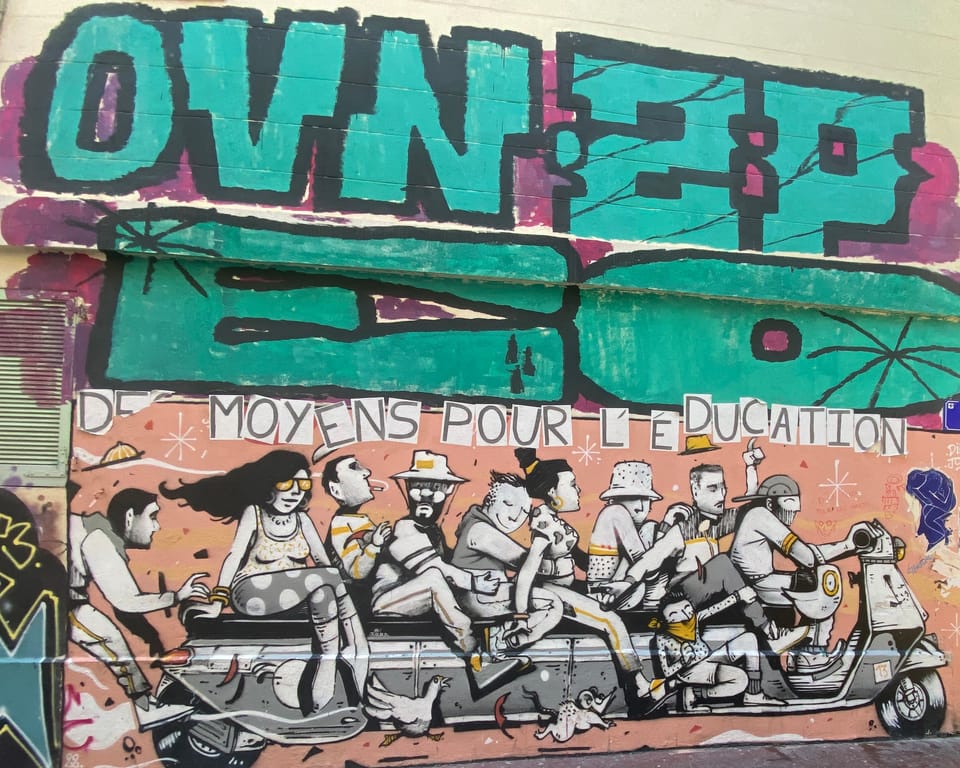
A quick beginner guide to making a clean photo video in iMovie on a Mac — no fuss, just the basics.
If you’re new to iMovie on a Mac, this is the easiest way to make a short photo video: choose photos, set the timing, add a title and music, then export ready for YouTube.
Sample video (practice edit):
Street Art — iMovie sample video
Before you start (Photos)
- Open Photos
- Albums → + → New Album
- Name it (for example: Street Art — Jan 2026)
- Add photos:
- Select photos → right-click → Add to Album
- or drag them onto the album name in the sidebar
1) Create the iMovie project
- Open iMovie
- Create New → Movie
- Name the project (top-left)
2) Import your Photos album into iMovie
- Click Import Media
- Left side: Photos
- Choose My Albums
- Click All (top right) to see your albums (alphabetical)
- Click your album → select photos → Import Selected
3) Put the photos into the timeline
- Click any imported photo
- Press ⌘A (select all)
- Drag into the timeline (bottom)
Press Spacebar to play/pause.
4) Change the photo timing (all at once)
Inspector (where the controls are):
Look near the top-right for the i icon.
If you can’t see it: Window → Show Inspector
Steps:
- Click a photo in the timeline
- Press ⌘A
- Open Inspector (i)
- Set Duration to 3.0 seconds
- Press Return
If Duration is greyed out, you’ve clicked a thumbnail in the media area — click a clip in the timeline and try again.
5) Crop / Ken Burns (optional)
- Click a photo in the timeline
- Above the preview window, click the Crop icon
- Choose:
- Crop to Fill (neat, fills the screen)
- Fit (shows the full photo)
- Ken Burns (gentle movement)
Simple rule: use Crop to Fill for most photos, Ken Burns only on a few.
6) Add a title
- Click Titles
- Choose a simple style (for example Standard)
- Drag it to the start of the timeline
- Click the text in the preview and type your title
To change how long it shows: drag the right edge of the title clip.
7) Add music
- Click Audio & Video
- Choose a track and drag it below your photos in the timeline (green bar)
- Click the green bar and set:
- Volume: around 15–20%
- Add fade in/out (if you see the little fade handles, drag them in)
Trim the music by dragging the end of the green bar so it finishes neatly with the last photo.
8) Export your video (the “save” you upload)
iMovie saves the project automatically. To create a video file:
- Share (top right) → File
- Choose:
- 1080p
- Quality: High
- Compress: Better Quality
- Next → choose where to save → Save
Quick fixes
- Black preview: click a timeline clip again, or quit/reopen iMovie
- One photo stays too long: check that clip’s duration
- Controls greyed out: make sure you selected a timeline clip, not a thumbnail

Member discussion