
📱Tech Tip: Free up iPhone storage fast — clear WhatsApp’s hidden clutter ✨
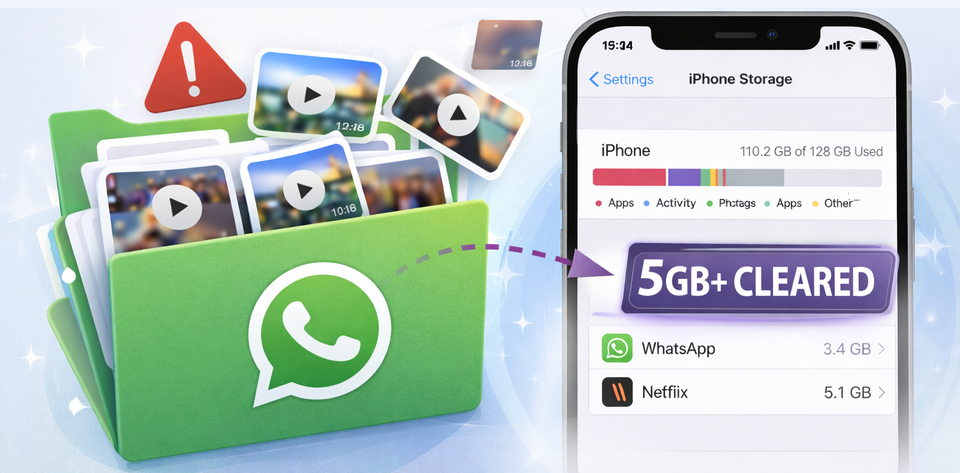
I got that annoying iPhone message saying I didn’t have enough space to install the latest update — on a 128GB phone. 🙃
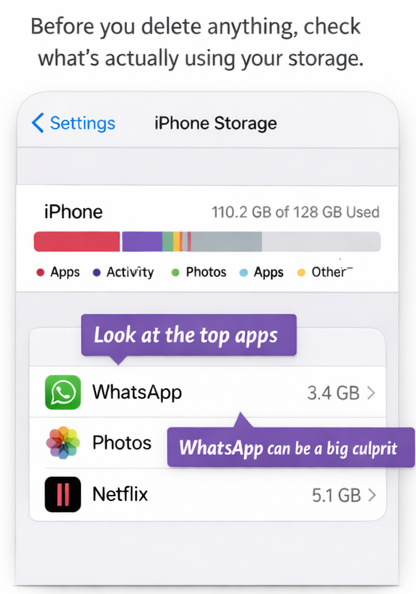
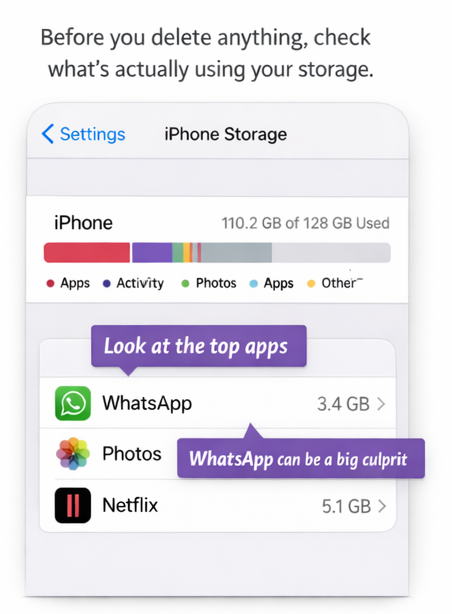
A quick look in Settings → General → iPhone Storage showed the culprit: WhatsApp, bloated with forwarded clips and videos I didn’t realise were still stored.
A few minutes in WhatsApp’s Manage Storage and I’d freed about 5GB.
Why WhatsApp gets so big (even when you delete things)
WhatsApp can build up fast because the same photo or video can end up stored in multiple chats and groups — especially forwarded clips. So even if you delete it in one place, it may still be sitting elsewhere.
That’s why Manage Storage is so useful: it shows what’s taking the space overall and lets you clear it quickly.
The quick clean-up (step-by-step) ✅
Step 1 — Open WhatsApp’s storage manager
Go to: WhatsApp → Settings → Storage and Data → Manage Storage
Give it a moment to load — it’s basically your WhatsApp “space report”.
Step 2 — Start with the biggest wins (Largest Items)
Tap Largest Items (or Top Media).
- Focus on videos first (they’re the biggest storage hog)
- Select the obvious junk
- Tap Delete
Step 3 — Clear “Forwarded many times”
This section is gold. It often shows the same clip repeated across chats.
- Open Forwarded many times
- Select duplicates / unwanted clips
- Tap Delete

Step 4 — Tackle the biggest chats by size
Under Chats, WhatsApp lists conversations in storage order (largest first).
Tap a big chat (group chats are often the worst!)
- Choose Videos first (then photos/GIFs)
- Select what you don’t need → Delete
- Quick way to clear photos/videos from one chat (without hunting through the whole conversation)
If there’s one chat (often a group!) that’s full of photos and videos, you can clear them in one go:
- Open the chat in WhatsApp
- Tap the chat name at the top (or the group title)
- Scroll down and tap Media, Links and Docs
- Tap Select
- Tap the first item you want to delete, then drag your finger across the rest to tick lots quickly ✅
- Tap Delete
This is a brilliant way to clear out old photo/video clutter without deleting the whole chat.
Quick sanity check ✅
After a clear-out, check your new space:
Settings → General → iPhone Storage
It can take a moment to refresh. If the number looks stubborn, a quick restart usually nudges it along.
Wrap-up
If your iPhone storage is suddenly tight, don’t assume it’s just photos. WhatsApp can be a hidden storage thief — especially with forwarded videos — and Manage Storage is the fastest way to take control back. 😊
If you’re in busy group chats, this is worth doing every month or two.



Member discussion