
📱iCloud Photos Sanity Check (iPhone + iPad + Mac)
I’ve got thousands of photos, and the annoying bit isn’t finding them — it’s waiting for them to show up on the Mac. 🙈 (And if you don’t use a Mac, don’t skip this — the same checks help you confirm syncing and see what’s using storage.)
So here’s my first step in taking back control: a simple sanity check for iCloud syncing and storage.
If your photos are spread across iPhone, iPad and Mac, this quick check will show you what’s syncing, what’s using storage, and how to keep originals safely on your Mac — without accidentally losing anything. 😊
The one thing to understand first
When iCloud Photos is turned on, your photos aren’t being “copied between devices” — they’re synced.
That means:
- Delete on one device → deletes everywhere (after Recently Deleted)
- Albums don’t duplicate photos — they just organise them
1) Check your photos are syncing properly
On iPhone / iPad
- Settings → your name
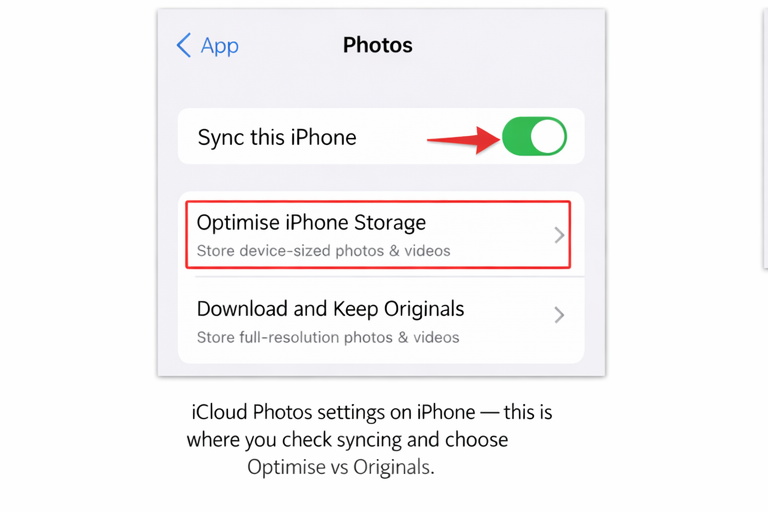
- iCloud → Photos
- Make sure Sync this iPhone / iPad is ON
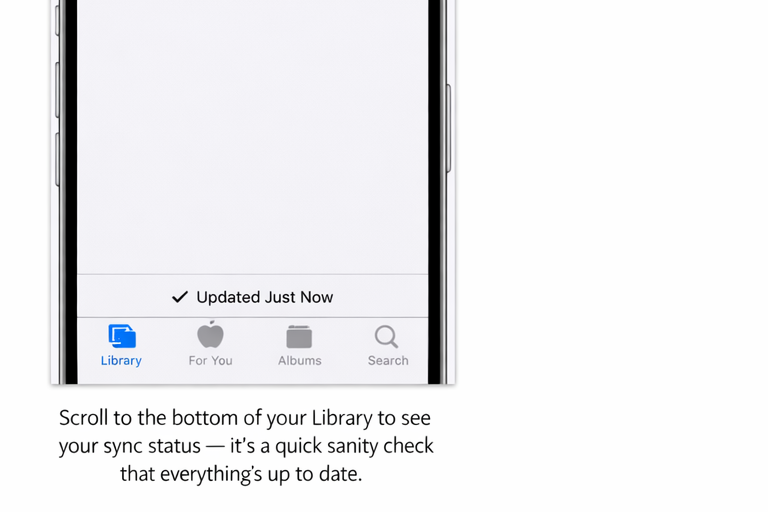
Open Photos → Library → scroll to the bottom.
You should see “Updated just now” or “Syncing…”.
2) See where your storage is going
On iPhone / iPad
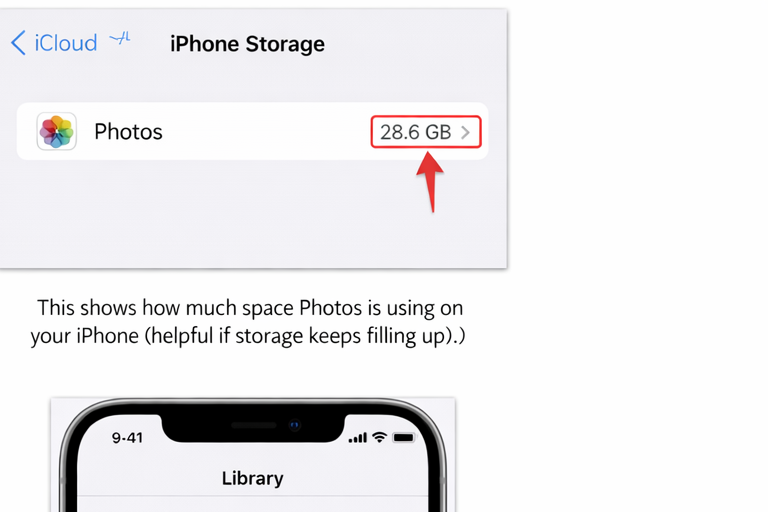
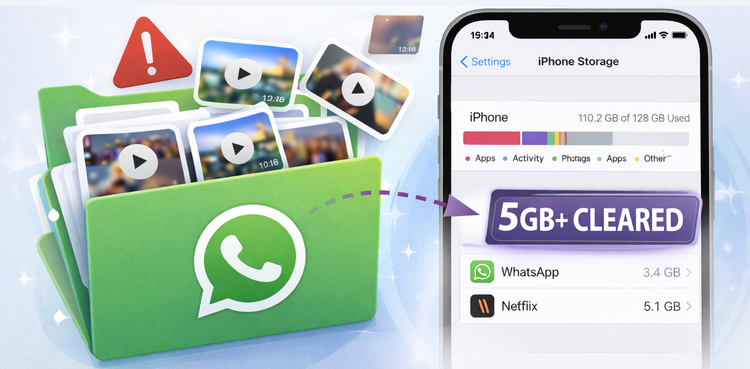
- Settings → General → iPhone Storage → Photos
This shows how much space Photos is using on that device.
Also check:
- Settings → your name → iCloud → Manage Account Storage → Photos
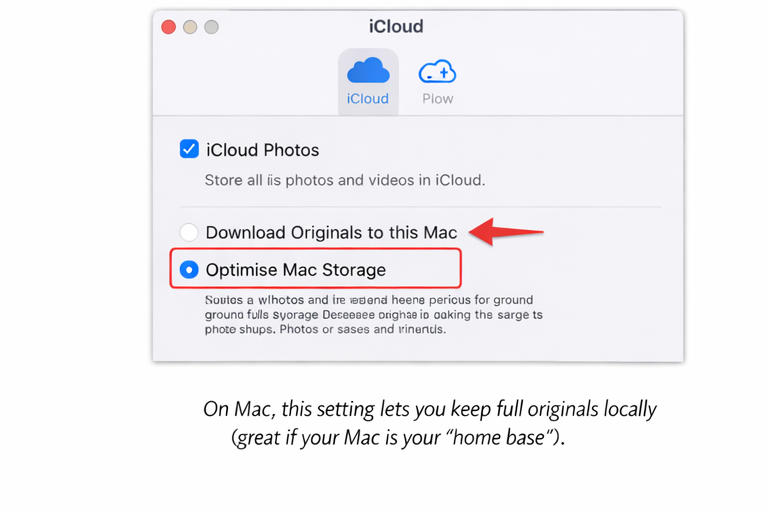
3) Use your MacBook as the “home base” for originals
This is the setup that keeps things simple and calm:
- iPhone & iPad: Optimise Storage
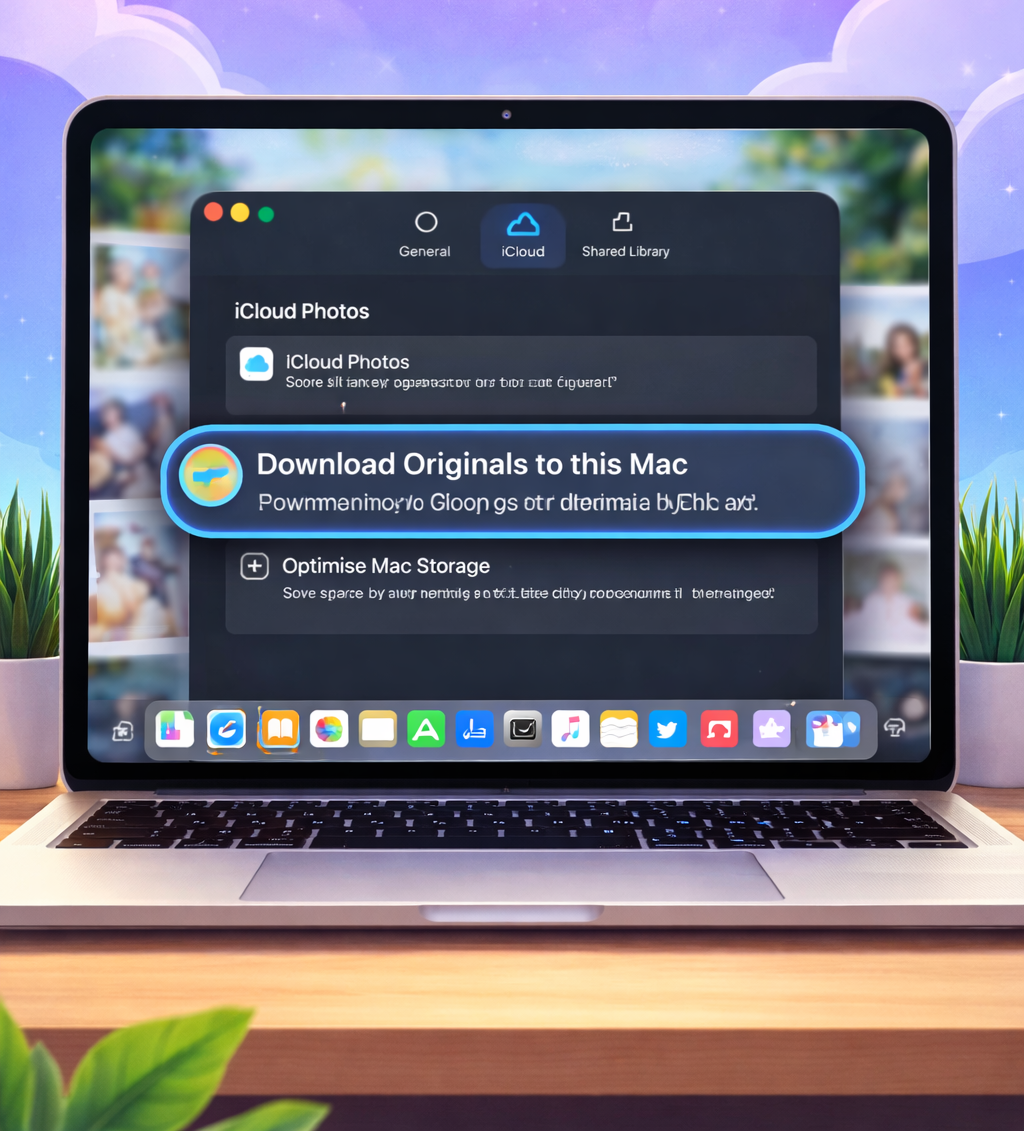
- MacBook: Download Originals
That way:
- Your phone and iPad stay light
- Your MacBook holds the full-quality originals
- iCloud keeps everything in sync
On your MacBook
- Open the Photos app
- Photos menu → Settings
- Go to iCloud
- Select Download Originals to this Mac
4) Two small habits that really help
Use Albums (they don’t duplicate photos)
Albums don’t create extra copies, so you can have simple ones like:
- Travel
- Family
- Blog-ready
- Best of the year
Do a 10-minute tidy now and then
A handful of screenshots or duplicates each week keeps things under control.
A simple recommended setup
✅ MacBook: Download Originals
✅ iPhone & iPad: Optimise Storage
✅ All devices: iCloud Photos ON
Full originals safe on the MacBook, lighter devices everywhere else — and far fewer panics when storage messages pop up.
y



Member discussion